What changed
The text editor is found when using features like Manual Email, Subscriptions, Reverse Prospecting, the Custom Report Editor, and more. While the functionality remains the same, some features have been added and some features have changed positions.
Font
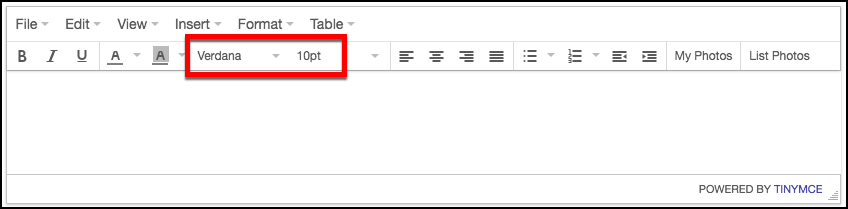
The font type and font size appear by default, making it easier to increase or decrease the size of your text.
Insert links
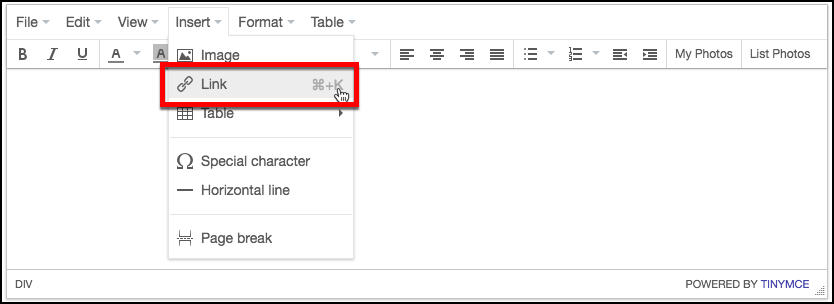
To insert links into your text, click the Insert menu, and select Link.
Preview
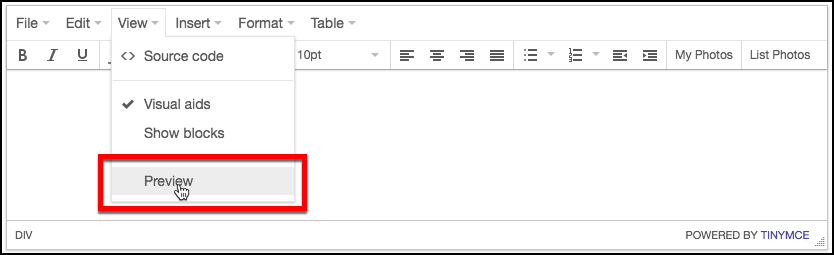
To preview how the body of your message will appear, click the View menu and select Preview.
Please note: if you are using the Custom Report Editor, and want to preview how the report will look, click the Preview button at the top right of the screen.
Quick edit for tables
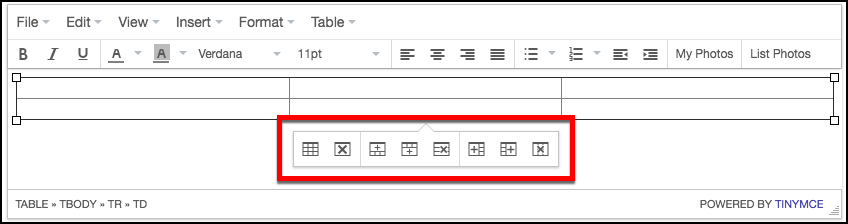
If youÕve inserted a table, there is a new table editor that appears when you click on the table. It allows you to edit the Table Properties, Delete the Table, Insert/Delete Rows, and Insert/Delete Columns.
Access source code
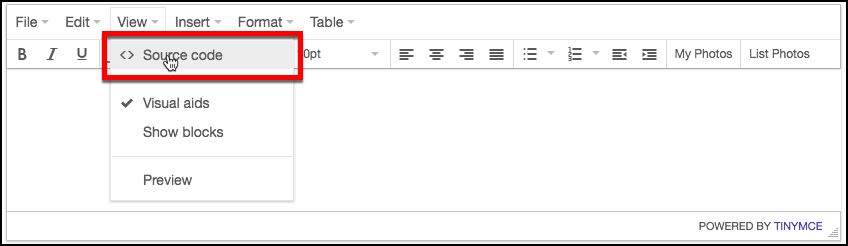
To access the Source Code and directly manipulate the html code, click on the View menu and select Source Code. Most users may not use this feature; however, it is a very useful feature for power-users and MLS Administrators.