Overlays and drawn shapes are a quick and easy way to search a specific area on the map, and now you are able to use them as a filter when searching on a mobile device (iOS app, Android app, mobile web browser). From either the Location field or the Overlay field, you can access and use saved overlays or draw shapes on the map to create a more targeted search for your buyers.
When and where is this live?
June 5, 2025 on the iOS mobile app. May 8, 2025 on Android app and mobile web browser.
What is changing on the iOS app?
Previously available only as a visual experience, map overlays and drawn shapes can now be used as a search tool, allowing you to filter your search by saved overlays and drawn shapes. From the Filter panel, you can easily focus your search by adding a map overlay in the Location field or the Overlays field, in addition to drawing a new shape on the map.
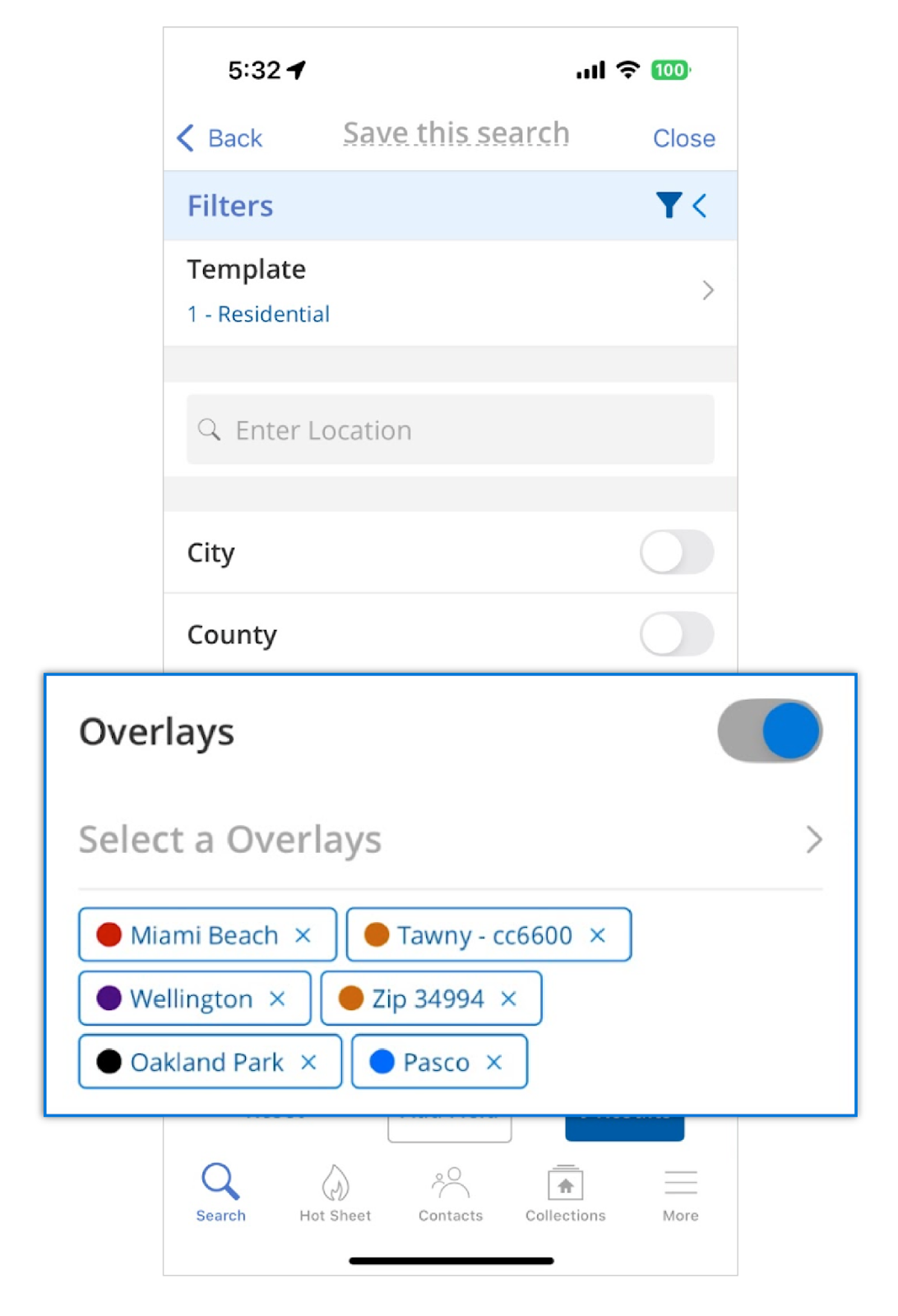
To use a saved overlay to filter your search, you can enter a location in the Location field and select a saved overlay from the dropdown menu. Alternatively, you can select an overlay from the Overlays field. Any shapes that you draw on the map appear as filters in the Drawn Shapes field.
If you’ve drawn an overlay on the map, and you go back to filter your search, you will see a prompt telling you that your search is being filtered by drawn shapes. Here, you will have the option to clear those shapes and remove that criteria from your search.
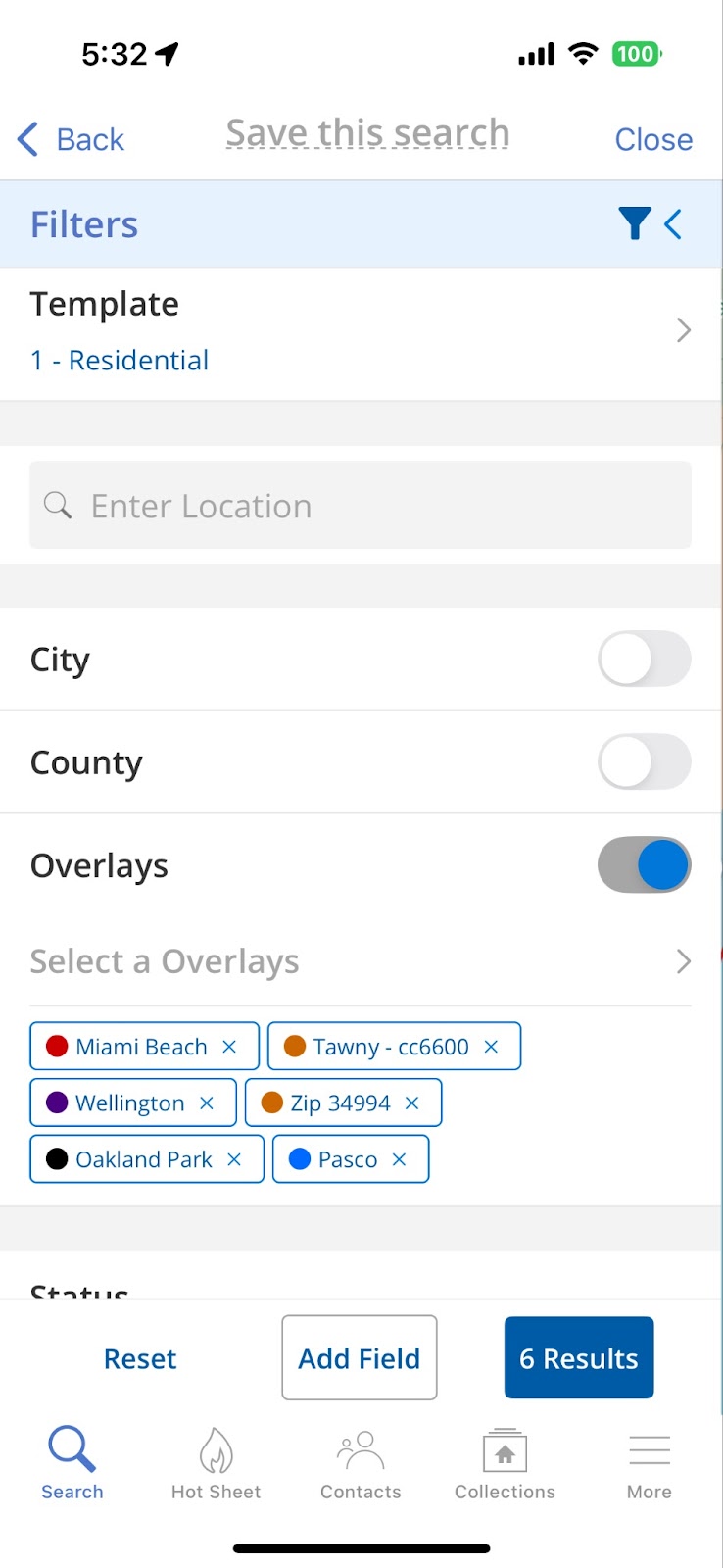
To delete a filter, click the X next to the filter name. Filters in the Location or Overlays field are saved, and you can select them again after deleting them. However, if you delete a Drawn Shape filter, you will need to re-draw the shape if you want to recover that filter.
What is changing on the Android app and mobile web browser?
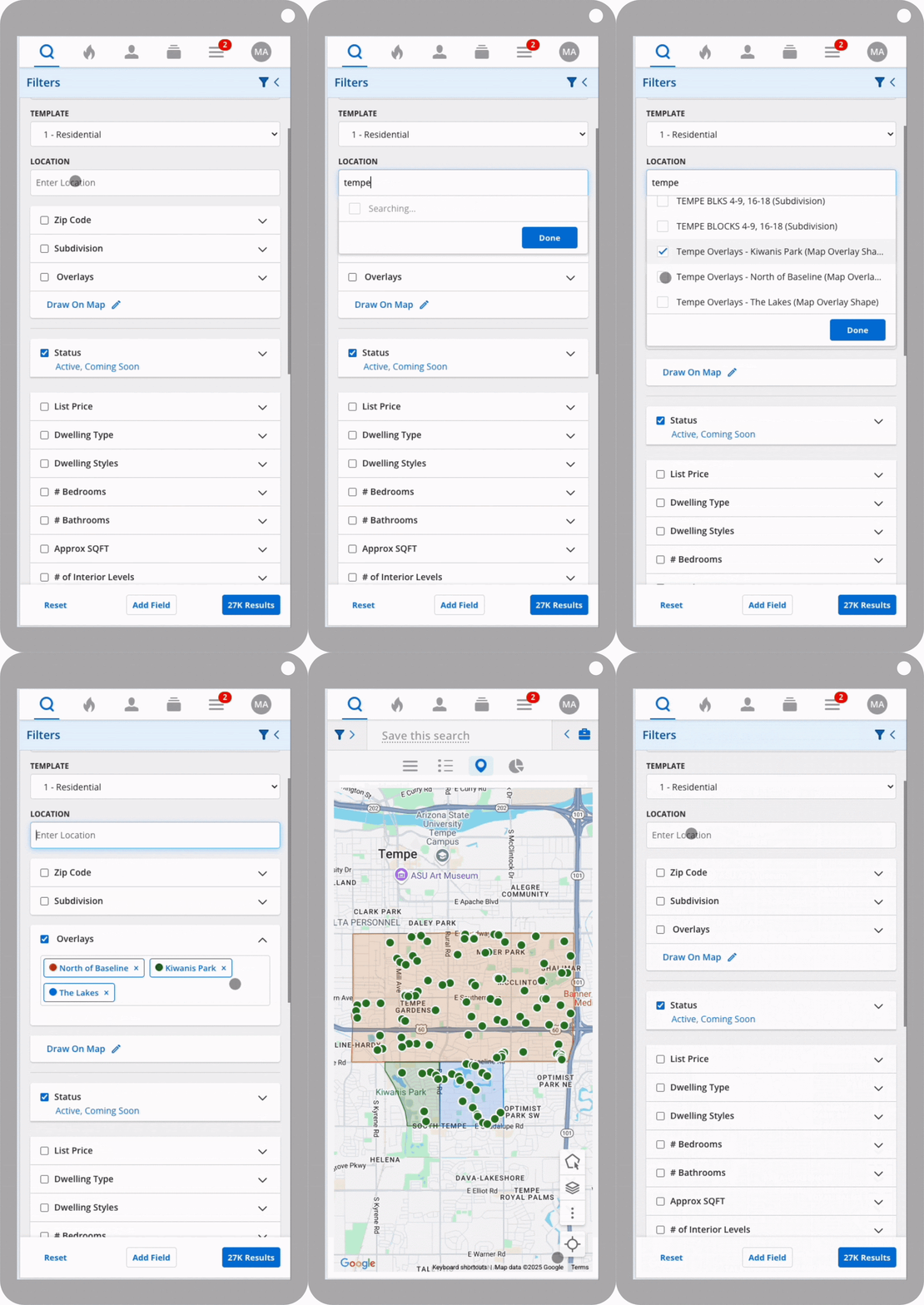
To use a saved overlay to filter your search, you can enter a location in the Location field and select a saved overlay from the dropdown menu. Alternatively, you can select an overlay from the Overlays field. Any shapes that you draw on the map appear as filters in the Drawn Shapes field.
There is also a new option on the filters panel called ÒDraw on MapÓ that when clicked, will take you straight to the map and open the map drawing tool.
Clicking on each filter in the Overlays or Drawn Shapes field highlights the corresponding overlay on the map, making it quick and easy to identify and edit any of these search filters. To delete a filter, click the X next to the filter name. Filters in the Location or Overlays field are saved, and you can select them again after deleting them. However, if you delete a Drawn Shape filter, you will need to re-draw the shape if you want to recover that filter.

